
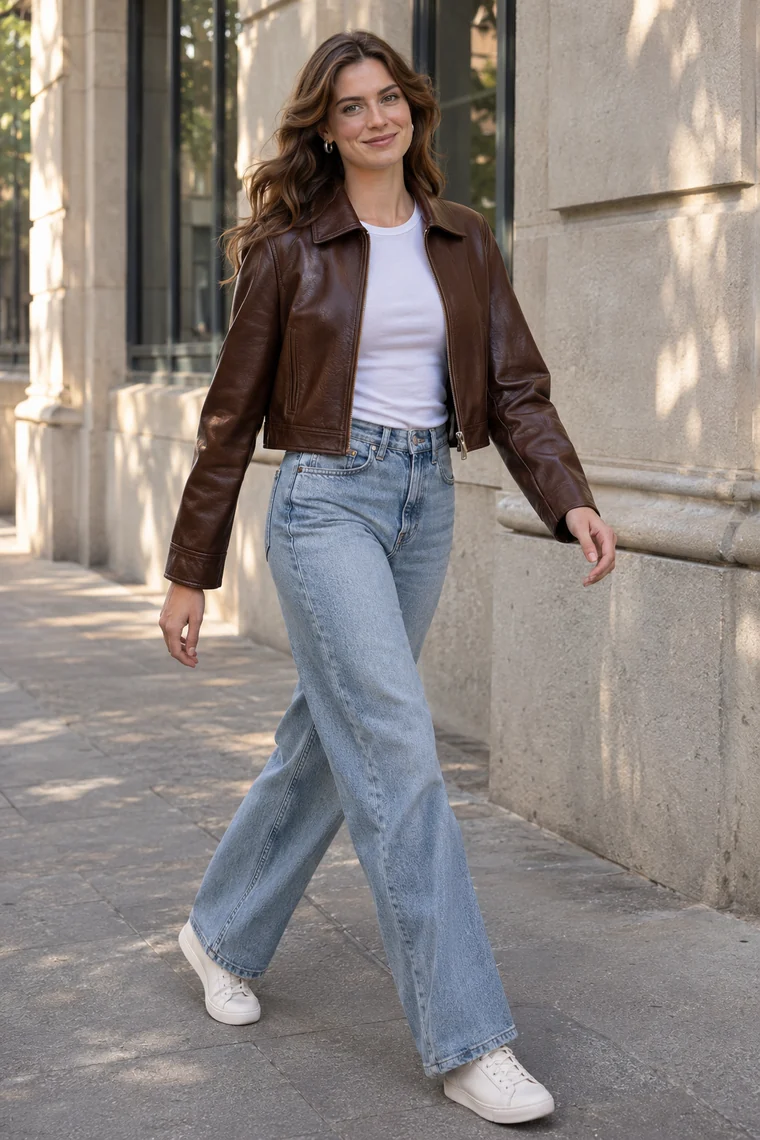
See an actual editing result
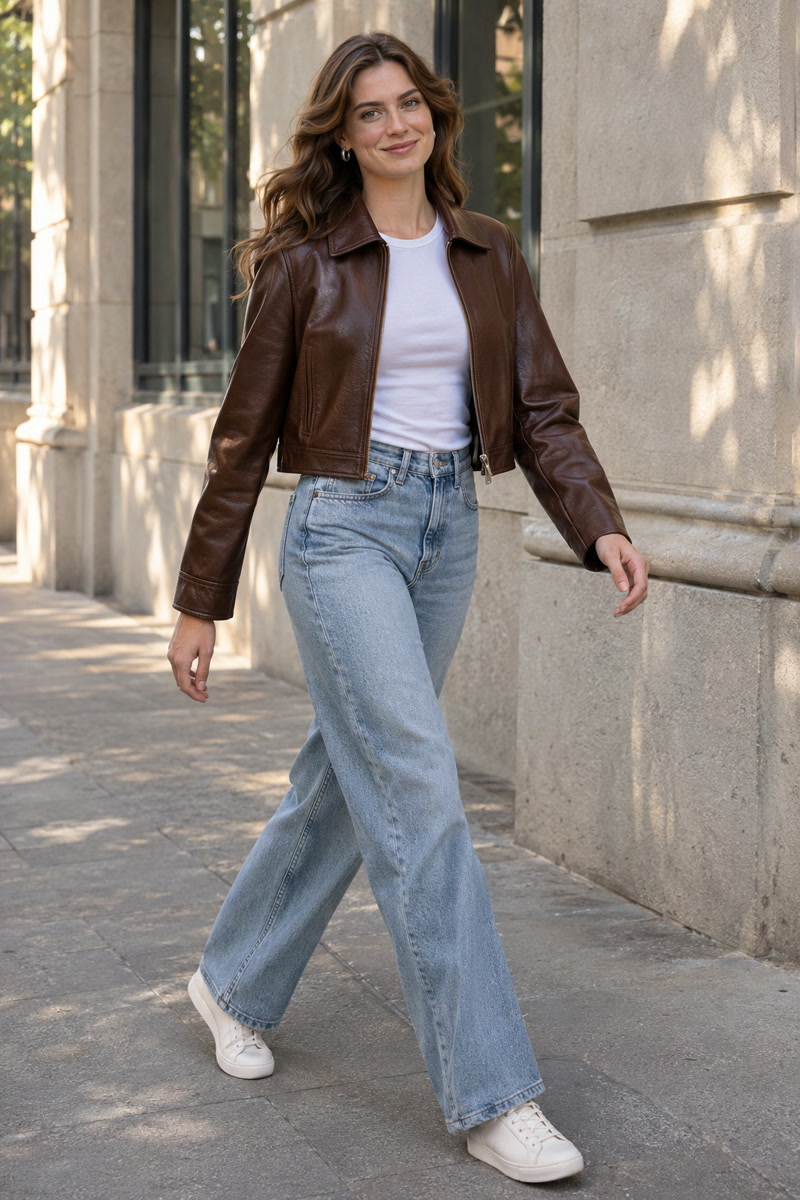
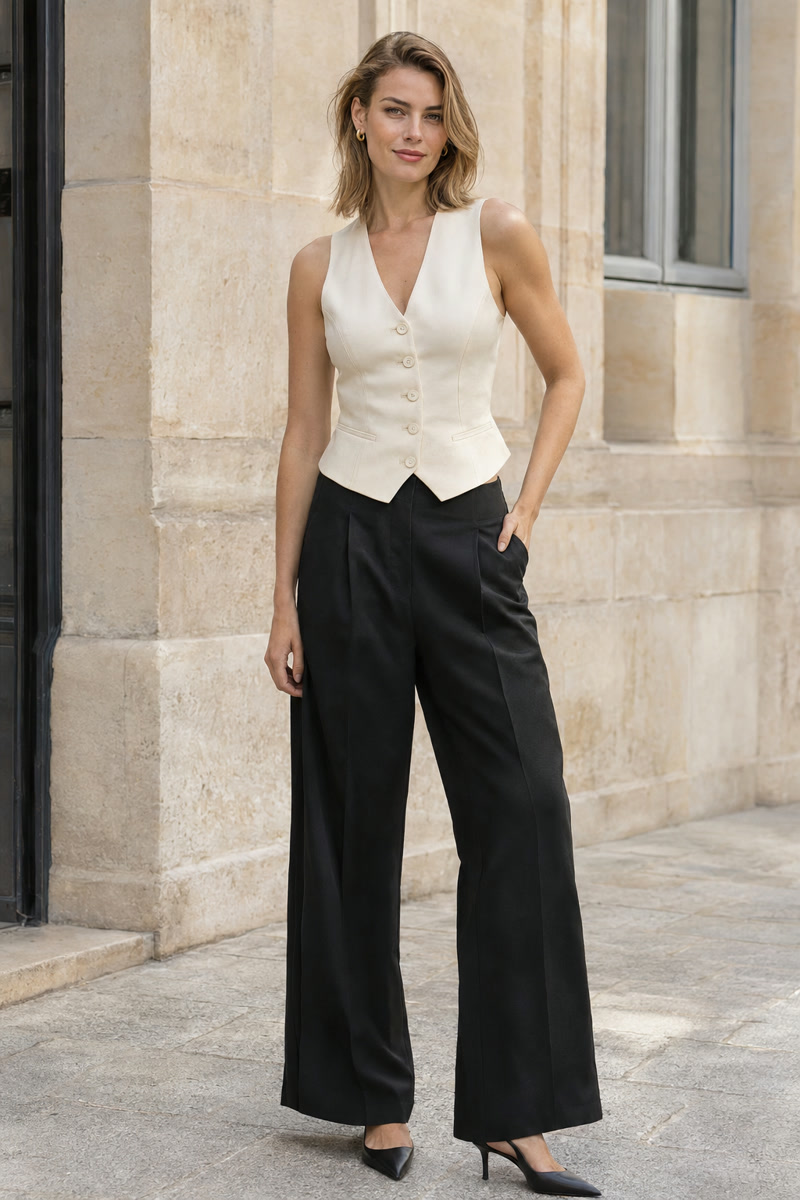
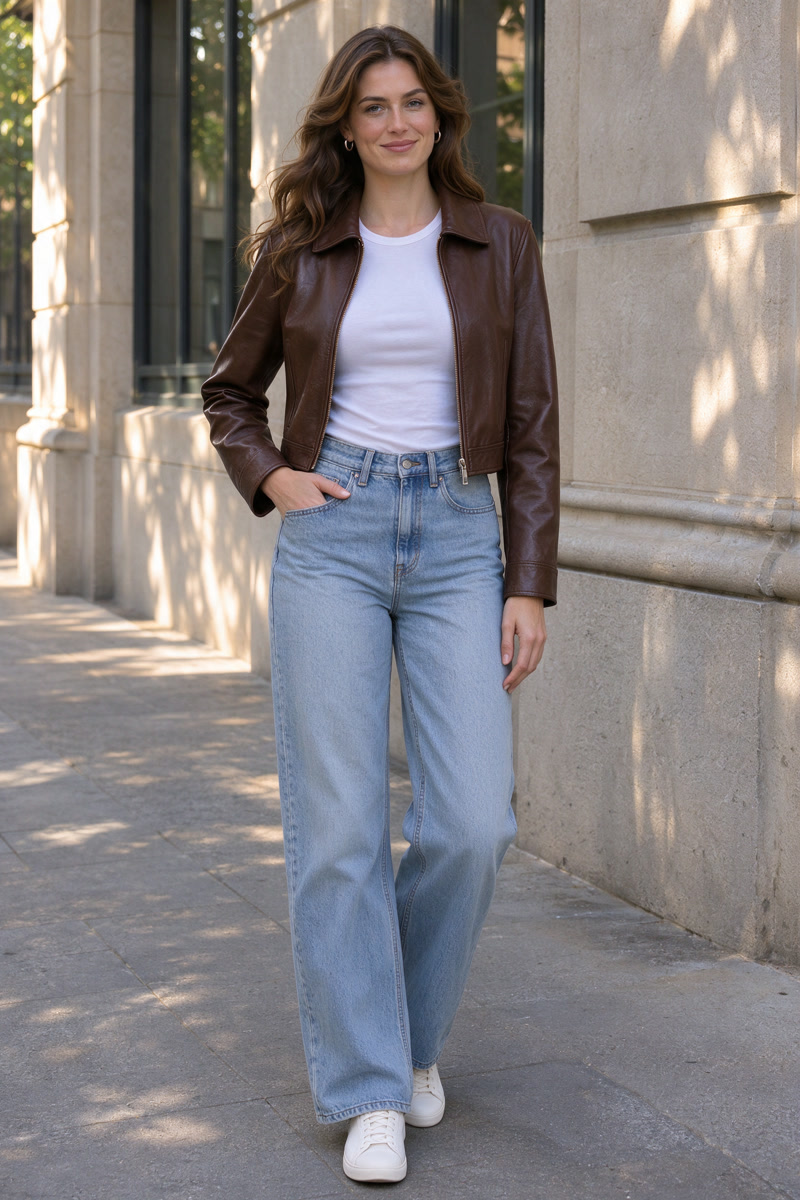
The edit explores a standing pose, but the pocket-hand position differs from the reference.
These fictional adult example inputs were created with AI. The result is an actual generation made using the same editing model and prompt as PoseGo, not a retouched mockup or an app screen recording. Review every result; exact pose or appearance preservation is not guaranteed.
Start with a suitable photo
Choose a clear photo of one adult who has agreed to this use. Pick a framing that includes the parts of the body you want to change. A head-and-shoulders portrait gives an AI editor less information about the lower body than a full-length photo.
Consider the original scene too. A seated reference introduces a different support and body position from a standing portrait. Start with a modest change if you want an easier comparison: a different stance, a gentle turn, or another position for the hands.
What to expect: this creates a new AI-edited image. It does not move existing pixels like a crop tool. Facial details, anatomy, clothing and the background can change.
Make a pose edit in PoseGo
- Choose a pose. Explore the Templates library and select a reference you want to try. You can also add a personal image through Your poses.
- Add the original photo. Use a photo you have the right to edit, including permission from the person pictured.
- Review the cost and processing notice. AI editing uses credits and an internet connection. Confirm the displayed credit cost and cloud-processing consent before starting.
- Review the result. Compare the finished image with your original. Look at the pose as well as the face, hands, clothing and background.
- Save the version you want to keep. Use the app's save or share controls once you are happy with the image.
For a reference you found or created yourself, follow the custom pose reference guide.
Review more than the pose
A result can follow the overall reference while changing other details. Before sharing, check both hands, the direction of the feet, the contact between the body and any chair or wall, and the edges of the outfit. Also check that the face and background are acceptable to you.
If a reference asks for a large change in viewpoint or hides important joints, try a clearer reference or a less dramatic pose. Every result should be reviewed on its own; one good example is not a guarantee for another photo.
PoseGo does not promise an exact copy of a reference or exact preservation of a person's appearance. Do not present the edited image as an unedited record of a real photo shoot.
Choose between editing and taking a new photo
Editing an existing photo is useful when you want to explore an alternative from a photo you already have and are comfortable reviewing AI changes. Taking a new photo gives you direct control over the real posture, expression and setting at capture time.
PoseGo's workflow is reference-based editing, rather than a live camera pose overlay. If you are planning another shoot, the portrait pose ideas page can help you decide which stance or seated pose to try.
Cloud copies of uploaded photos and references expire after seven days; generated images expire seven days after creation. Save results you want to keep. See photo privacy details and support for the full product policies.